# SnapOtter: Your Private File Workshop
**Who can use this:** Everyone with an account on our server.
[`https://snapotter.necc.me`](https://snapotter.necc.me)
### ⚠️ The Risk of Online File Editors
Many people use free websites to edit photos, convert PDFs, or compress videos. It is easy and fast, but there is a hidden cost: **your privacy**.
- **You lose control:** When you upload a file to these sites, you send a copy to their servers.
- **They see everything:** Most of these services do not have "end-to-end encryption." This means the company (and its employees) can technically see your documents, photos, and data.
- **Data selling & AI:** Many free services make money by selling your data or using your uploaded files to train their Artificial Intelligence (AI) models. Your private family photos or sensitive work documents could become part of a public AI dataset without you knowing.
### What is SnapOtter?
SnapOtter is our safe, private alternative. It is a powerful "file workshop" that runs entirely on our server.
- **Your files stay home:** When you use SnapOtter, your files never leave our network. They are not sent to a third-party company.
- **Huge Toolkit:** It includes over **200 tools** for images, videos, audio, PDFs, and documents.
- **Smart Features:** It uses local AI to do things like remove backgrounds from photos, improve image quality, read text from images (OCR), or even transcribe audio to text—all without sending data to the cloud.
### Key Features You Can Use
SnapOtter is like having a professional studio in your browser:
- **🖼️ Images:** Resize, crop, compress, convert formats (even RAW camera files), add watermarks, create GIFs, or remove objects/people from photos.
- **📄 PDFs:** Merge, split, compress, convert to/from Word, add passwords, or sign documents.
- **🎥 Video & 🎵 Audio:** Convert formats, compress size, or extract audio from video.
- **🤖 Local AI:** Remove backgrounds, upscale blurry photos, restore old pictures, or transcribe voice notes to text.
- **🔄 Batch Processing:** Do the same thing to 50 files at once (e.g., resize 50 photos instantly).
### How to Use It
Using SnapOtter is easy and works right in your web browser.
1. **Go to the website:** Open your browser and visit [**https://snapotter.necc.me**](https://snapotter.necc.me).
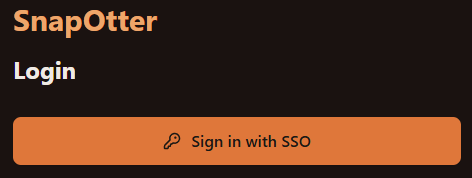
2. **Log In: **You will see a login screen. Click the button **Sign in with SSO.**
[](https://docs.necc.me/uploads/images/gallery/2026-08/ymlimage.png)
1. **Pick a Tool:** On the top side, you will see categories like "Image," "PDF," "Video," etc. Click on one to see the tools.
2. **Upload & Edit:** Drag and drop your file(s). Choose the settings you want (e.g., "Compress to 50%" or "Remove Background").
3. **Download:** Click the process button. When it is done, download your new file. The original and the result stay only on our server and are cleaned up automatically after a while.