# MFA Setup Guide
This page will help you set up **Multi-Factor Authentication (MFA)**.
Think of MFA like a double lock on your door. Even if someone steals your key (password), they still cannot get in without the second lock (your phone or security key).
### Step 1: Open Settings
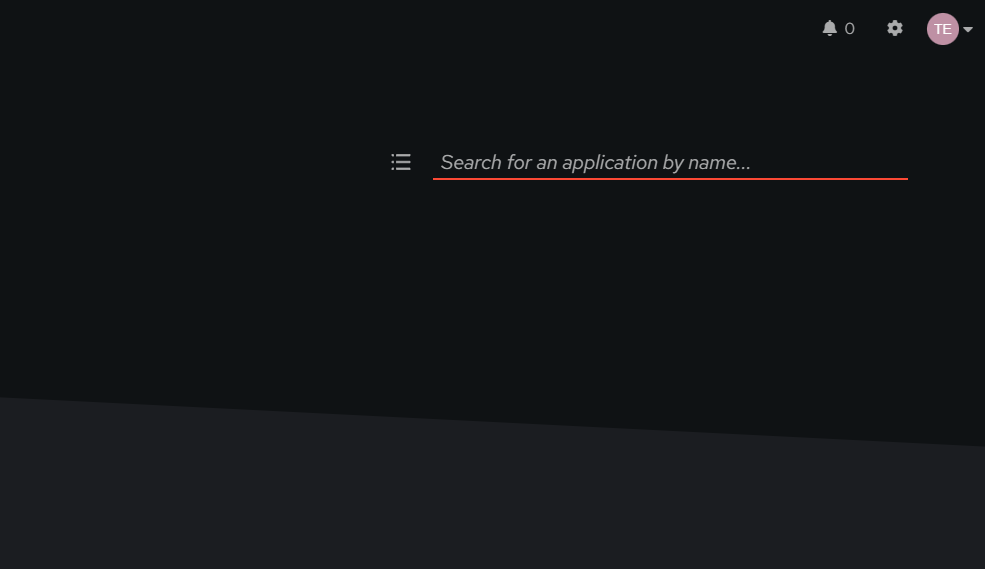
After you log in, look at the **top right corner** of the screen. You will see your username. Next to it, click the **Settings** icon (it looks like a small gear or cogwheel ⚙️).
[](https://docs.necc.me/uploads/images/gallery/2026-08/mv4image.png)
### Step 2: Go to Credentials
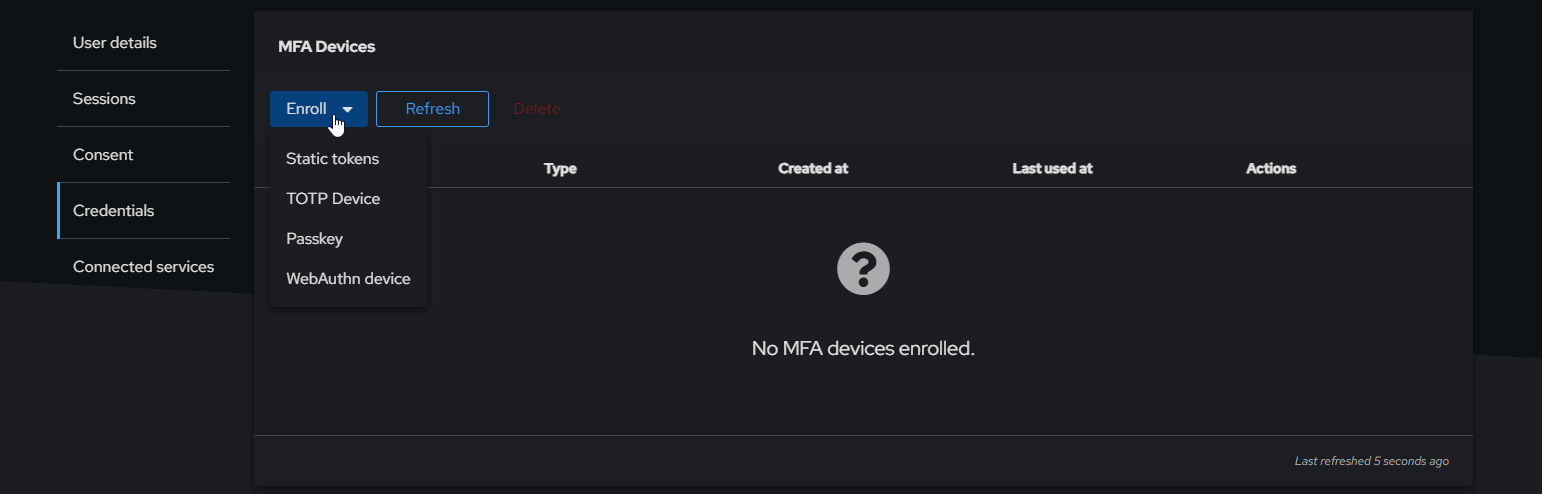
A menu will appear on the left side. Click on **Credentials**.
Next to the "Credentials" title, you will see a button that says **Enroll**. Click this button to see a list of options. You can choose one or more methods to secure your account.
[](https://docs.necc.me/uploads/images/gallery/2026-08/7gtimage.png)
### Step 3: Choose Your Method
Here is what each option means in simple words.
**💡 Tip:** We have a password manager called [**Vaultwarden**](https://docs.necc.me/books/services-overview/page/vaultwarden-your-password-box) (like Bitwarden) hosted on this server too! It can store your passwords and backup codes safely. You can find it here: [`[VAULTWARDEN]`](https://pass.necc.me/). If you use Vaultwarden, it can also generate your TOTP codes for you!
#### 1. Static Tokens (Backup Codes)
- **What is it?** A list of special one-time codes.
- **Why use it?** These are **emergency keys**. If you lose your phone or your main method breaks, you can use one of these codes to get in.
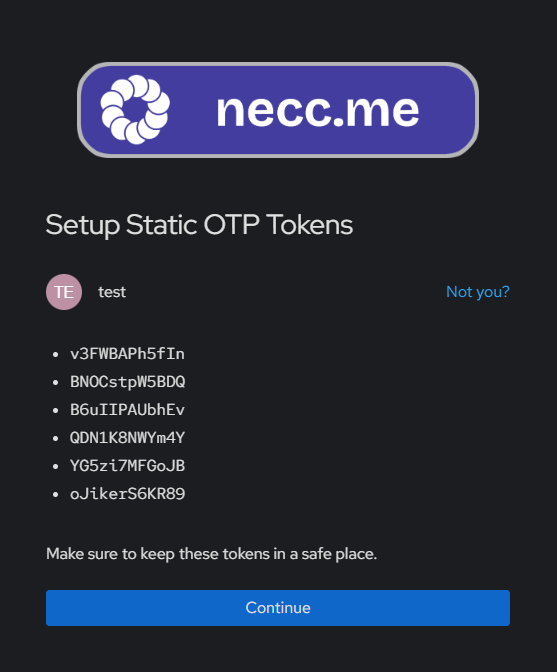
- **How to set up:** Click the option, download or copy the list of codes, and save them in a very safe place (like inside Vaultwarden or on a printed paper). **Each code works only once, this is really just an emergency solution!**
- **Vaultwarden Tip:** You can save these codes as a "Secure Note" inside your Vaultwarden vault.
[](https://docs.necc.me/uploads/images/gallery/2026-08/4S4image.png)
#### 2. TOTP Device (Authenticator App)
- **What is it?** This connects to an authenticator app on your phone OR your password manager. It shows a new 6-digit code every 30 seconds.
- **Why use it?** This is the **most common method** for daily use. It is very reliable.
- **How to set up:**
1. Select this option from the Enroll drop down list.
2. A QR code will appear on your screen.
3. Open your authenticator app (or Vaultwarden) and scan the QR code.
4. Type the 6-digit code shown in your app into the box on the screen.
- **Vaultwarden Tip:** If you use the Vaultwarden browser extension or mobile app, you can often scan the QR code directly into your login item. Then, Vaultwarden will auto-fill the code when you log in!

#### 3. Passkey
- **What is it?** A modern way to log in without typing codes. It uses your device's built-in security, like your **fingerprint**, **face scan** (Face ID), or **screen lock PIN**.
- **Why use it?** It is the easiest and fastest way to log in.
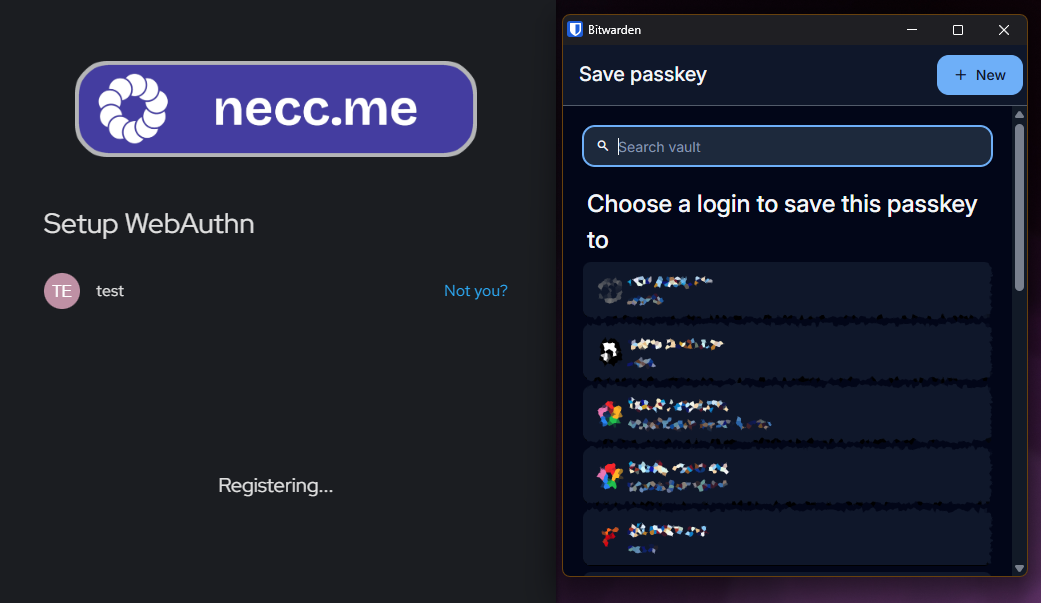
- **How to set up:** Select this option and follow the screen instructions to use your fingerprint or face. Your browser or phone will guide you.
[](https://docs.necc.me/uploads/images/gallery/2026-08/C2uimage.png)
#### 4. WebAuthn Device (Security Key)
- **What is it?** This is for physical hardware keys (like a YubiKey) that you plug into your computer or tap on your phone.
- **Why use it?** If you have a special USB security key and want the highest protection.
- **How to set up:** Plug in your key, select this option, and touch the key when it flashes.

### Step 4: Finish Setup
1. **Select the option** you want from the list.
2. Follow the **instructions on the screen** (as described above).
3. Once finished, the system will confirm your device is added.

You are now fully protected!